![wellnesscoach-full-white-inline (4).png]](https://customer.wellnesscoach.live/hs-fs/hubfs/wellnesscoach-full-white-inline%20(4).png?height=40&name=wellnesscoach-full-white-inline%20(4).png)
Follow the steps below or download guide here.
Key Configuration Details
Reference these values during SSO and SCIM setup
|
Parameter |
Value |
|
Single Sign-On URL |
https://api.meditation.live/auth/sso/callback |
|
Audience URI (SP Entity ID) |
WellnessCoach |
|
Default Relay State |
Obtain from Wellness Coach Admin Portal |
|
Name ID Format |
EmailAddress |
|
Application Username |
Okta username |
|
SCIM 2.0 Base URL |
https://ed.wellnesscoach.live/scim |
|
SCIM Unique Identifier |
|
|
SCIM Authorization Token |
Obtain from Wellness Coach Admin Portal |
|
Wellness Coach Portal |
https://portal.wellnesscoach.live/ |
Don't have Portal access? Email CustomerSuccess@wellnesscoach.live to get access to the Portal.
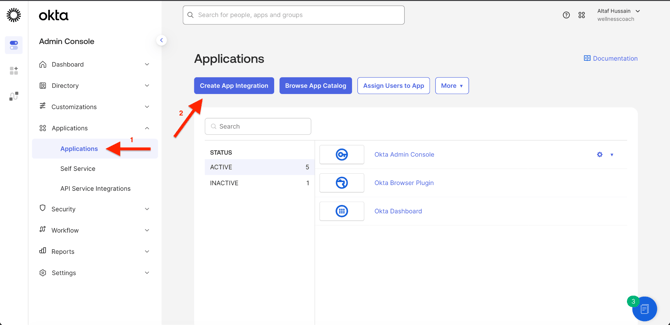
Step 1: Create App Integration
Go to Okta Admin Console, click Applications, then Create App Integration.
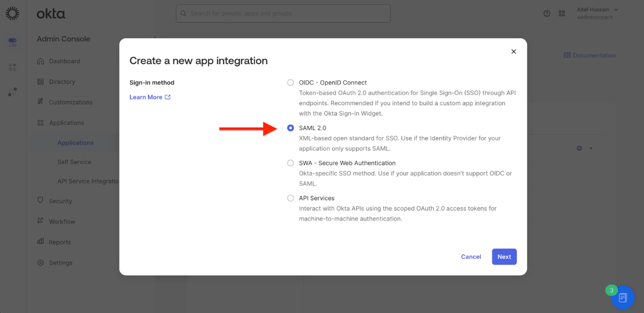
Step 2: Select SAML 2.0
Choose SAML 2.0 as the sign-in method and click Next.
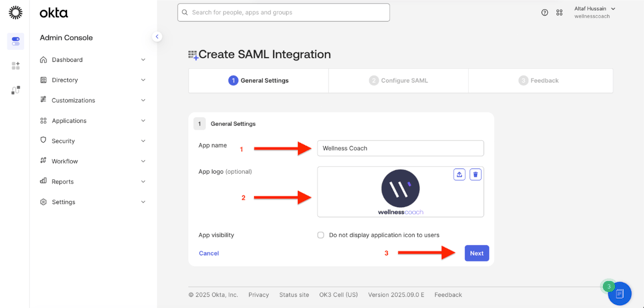
Step 3: Configure App Settings
Enter 'Wellness Coach' as the app name, upload the logo, and click Next.
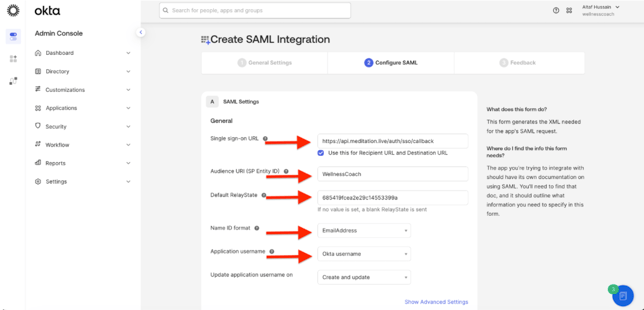
Step 4:Configure SAML Settings
Enter the Single Sign-On URL, Audience URI, Default Relay State, and configure Name ID format.
Single Sign-on URL: https://api.meditation.live/auth/sso/callback
Audience URI (SP Entity ID): WellnessCoach
Default Relay State: [Get from https://portal.wellnesscoach.live/enterprises/config/sso-scim]
Step 5:Configure Attributes
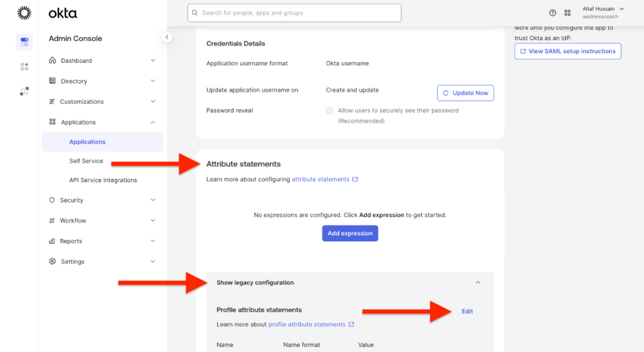
On the Sign On tab, scroll to Attribute Statements, click Show Legacy Configuration, and click Edit.
Step 6:Attribute Statements
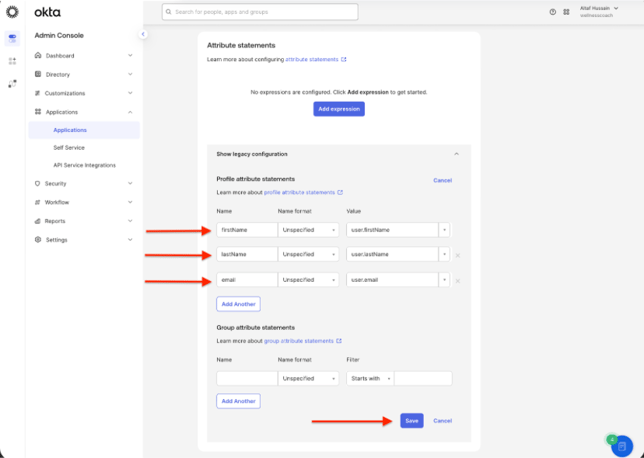
Map firstName, lastName, and email attributes from Okta user profile.
Step 7:Complete Setup
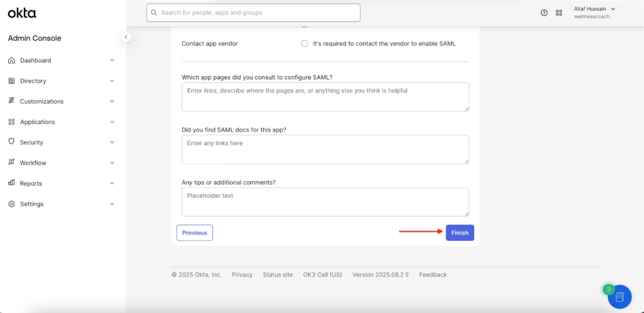
Click Save or Next, Review settings and click Finish to create the integration.
Step 8:Copy Metadata URL
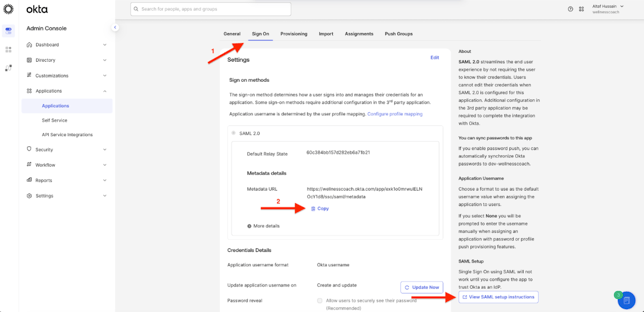
On the Sign On tab, copy the metadata URL for Wellness Coach configuration in the Portal.
Step 9:Configure Wellness Coach Portal
Enable SSO in the Wellness Coach Admin Portal, enter the IdP metadata link, and click fetch to prefill the values, then save.
Alternatively, you can upload the IdP metadata XML file to prefill the values, then save.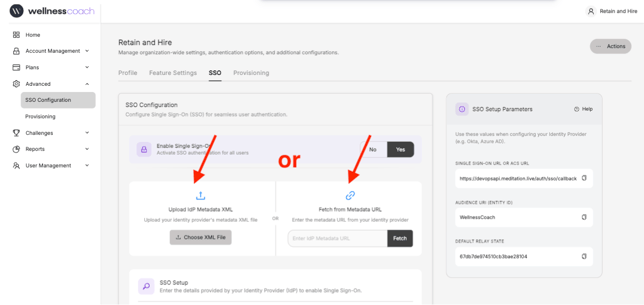
Step 10:Configure Wellness Coach Portal
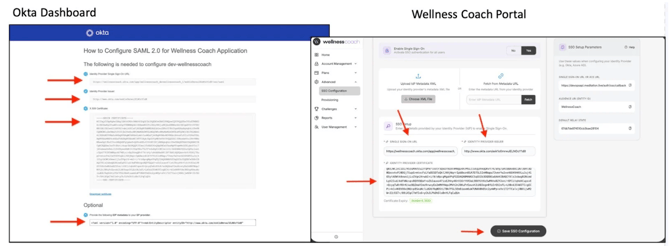
If the upload or fetch from URL does not work, you can copy and manually fill in the three required parameters from the “View SAML Setup Instructions” (Refer step 8) link in Okta. And then Save SSO Configuration
PART 2- Okta SCIM Setup
Step 1: Enable SCIM
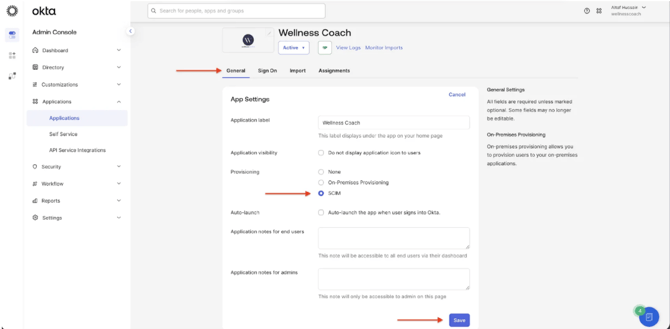
Navigate to the General tab -> Click Edit -> Select SCIM -> Click Save.
Step 2: Configure SCIM Settings
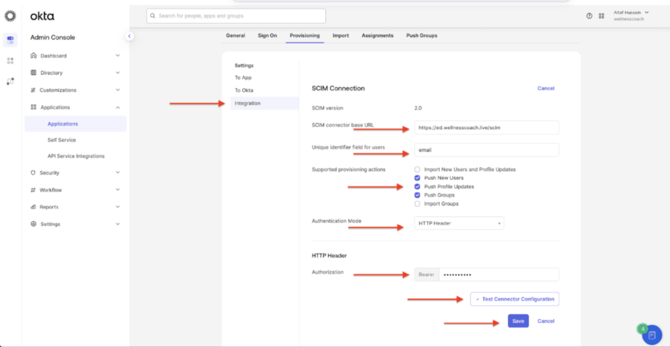
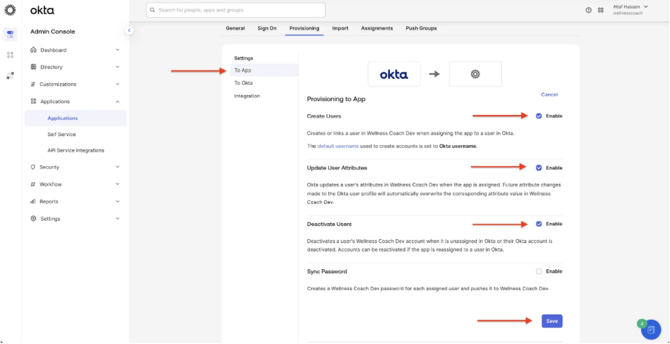
Navigate to the Provisioning tab -> Integration -> Edit
Enter the SCIM 2.0 Base URL, unique identifier, and authorization token.
Select HTTP Header for Authentication Mode
SCIM Connector base URL: https://ed.wellnesscoach.live/scim
Authorization Token: [Get from https://portal.wellnesscoach.live/enterprises/config/employee-verification-template#scim-config]
SSO & SCIM Overview
Background information on Single Sign-On and SCIM
What is Single Sign-On (SSO)?
SSO allows users to authenticate once and gain access to multiple applications without re-entering credentials.
Instead of maintaining separate usernames and passwords for each app, employees log in once through an Identity Provider (IdP) like Microsoft Entra ID and get automatic access to all connected services.
How SSO Works
-
User visits Wellness Coach
-
Redirected to Azure AD (IdP)
-
User authenticates once
-
Azure sends SAML assertion
-
Access granted automatically
SSO Authentication Flow: Wellness Coach supports both IdP-Initiated and SP-Initiated SSO
IdP-Initiated Login
-
Employee logs into Okta Dashboard
-
Clicks the Wellness Coach icon
-
SAML request sent from Okta
-
Automatically signed into Wellness Coach
SP-Initiated Login
-
Employee opens Wellness Coach app
-
Redirected to Okta login page
-
Employee authenticates with Okta
-
Redirected back, access granted
Why SSO with Wellness Coach?
-
Single Sign-On:
Access Wellness Coach with one set of login credentials from any device or application, whether cloud or on-premise.
-
Employee Access Management:
New hires automatically get access on their start date. Terminated employees' access is revoked on their last day.
-
Fraud Prevention:
Azure AD's Conditional Access policies detect and block fraud in real-time using Device ID, Location, and risk-based authentication.
-
Seamless Experience:
Employees enjoy frictionless access to wellness resources without managing multiple passwords or separate logins.
What is SCIM? System for Cross-domain Identity Management
SCIM is an open standard that automates user provisioning and de-provisioning across cloud applications.
With SCIM, your Active Directory stays in sync with Wellness Coach. When an employee joins your organization, their Wellness Coach account is created automatically. When they leave, access is revoked instantly.
Auto-Provisioning: New employees get access automatically
Real-Time Sync: Directory changes reflect instantly
Auto-Deprovisioning: Access revoked on termination