![wellnesscoach-full-white-inline (4).png]](https://customer.wellnesscoach.live/hs-fs/hubfs/wellnesscoach-full-white-inline%20(4).png?height=40&name=wellnesscoach-full-white-inline%20(4).png)
The Wellness Coach iOS app supports:
✓ iPhone Action Button
Open the Meal Camera instantly with a single button press.
Configure the Action Button to Open the Meal Camera
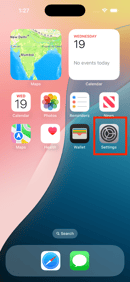
Step 1 – Open Settings
Go to:
Settings → Action Button
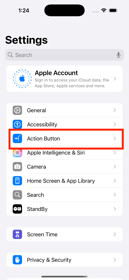
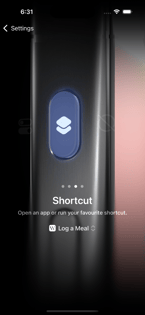
Step 2 – Select “Shortcut”
Scroll through the Action Button modes and choose:
Shortcut
Choose Shortcut → Wellness Coach
Tap:
Choose a Shortcut
Scroll to Wellness Coach
 .
. 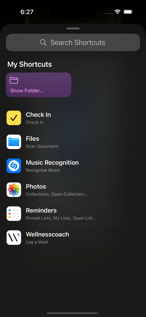
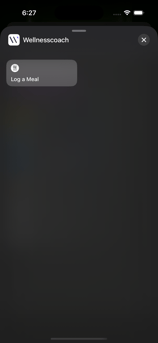
Step 3 – Select “Log a Meal”
You will see a shortcut named:
Log a Meal
Tap to select it.
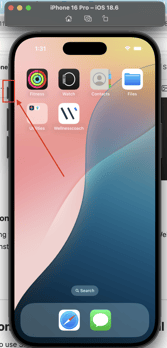
With a press of the Action Button, the Wellness Coach Meal Camera opens instantly so you can quickly capture and log your meal.
 .
. 
Testing the Setup
✔ Test the Action Button: Press the Action Button → The Meal Camera should open immediately.