![wellnesscoach-full-white-inline (4).png]](https://customer.wellnesscoach.live/hs-fs/hubfs/wellnesscoach-full-white-inline%20(4).png?height=40&name=wellnesscoach-full-white-inline%20(4).png)
✓ Siri Voice Commands
Say “Log a meal in Wellness Coach” and jump directly into the meal-logging camera.
Both options provide a faster way to capture meals without navigating through the app manually.
Configure Siri to Open the Meal Camera
You can also use Siri to trigger the same shortcut.
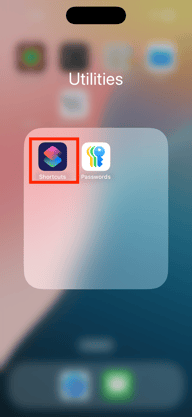
Step 1 – Open Shortcuts App
Go to:
Shortcuts → App Shortcuts → Wellness Coach
 .
. 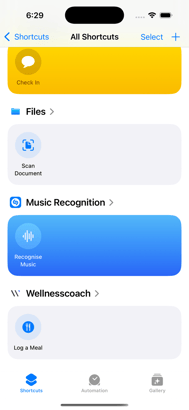
Go to:
Shortcuts → App Shortcuts → Wellness Coach
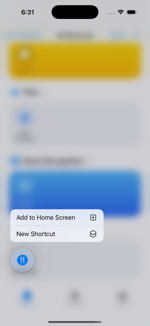
Meal Camera (or Open Meal Camera)
Recommended Siri Phrases
- "Log a meal in Wellness Coach"
- "Track my meal in Wellness Coach"
- "Log my breakfast in Wellness Coach"
- "Log my lunch in Wellness Coach"
- "Log my lunch in Wellness Coach"
Now say:
“Hey Siri, Log a meal in Wellness Coach.”
Siri will open the app directly inside the Meal Camera.
Testing the Setup
✔ Test the Action Button: Press the Action Button → The Meal Camera should open immediately.
✔ Test Siri Say: "Hey Siri, Log a meal in Wellness Coach.” Siri should launch the app directly into the Meal Camera.
Troubleshooting
If Siri says “I can’t do that”:
-
Re-add the Siri phrase from Shortcuts.
-
Restart your device.
-
Update to the latest iOS version.