![wellnesscoach-full-white-inline (4).png]](https://customer.wellnesscoach.live/hs-fs/hubfs/wellnesscoach-full-white-inline%20(4).png?height=40&name=wellnesscoach-full-white-inline%20(4).png)
Steps to Add a Domain:
-
Log in to the Admin Portal
Access your admin account through the Wellness Coach portal. -
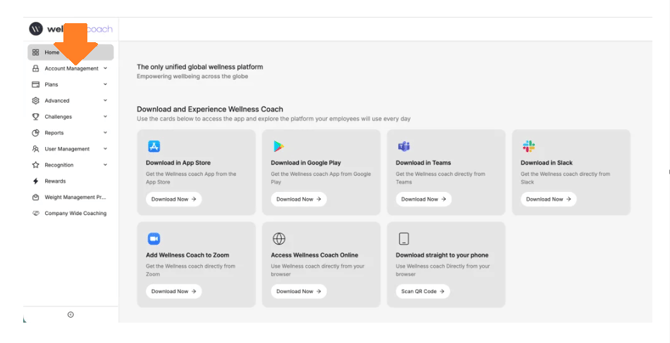
Go to Account Management
From the main menu, click on Account Management. -
Select Account Profile
Within Account Management, click on Account Profile. -
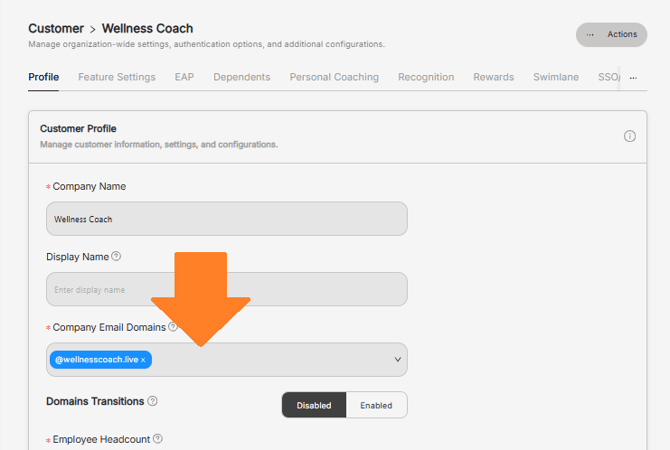
Add Company Email Domain
Under the “Company Email Domains” section, add the new domain (e.g., @company.com). -
Save Changes
Make sure to save your updates so the new domain is applied.
Once added, users with email addresses from that domain will be able to register and access their benefits under your company account.