![wellnesscoach-full-white-inline (4).png]](https://customer.wellnesscoach.live/hs-fs/hubfs/wellnesscoach-full-white-inline%20(4).png?height=40&name=wellnesscoach-full-white-inline%20(4).png)
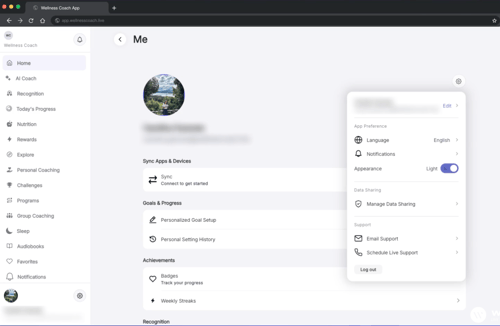
About the Themes Light Mode Light Mode displays a bright, clean white-and-lavender interface. It is ideal for well-lit environments and users who prefer high contrast on a light background. Dark Mode Dark Mode displays a deep navy and dark background with lighter text. It reduces eye strain in low-light environments and is easier on the eyes at night.
Note: Both themes display the same features and content — the difference is purely visual. Your data, programs, and coaching sessions remain exactly the same regardless of which theme you use.
How to Switch between Light and Dark Mode:
1. Tap your profile icon — labeled "Me" — in the bottom navigation bar.
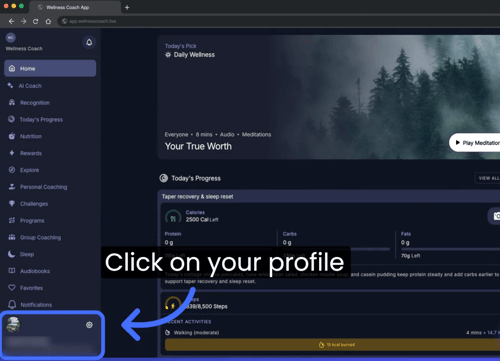
2. Tap the gear icon to open Settings.
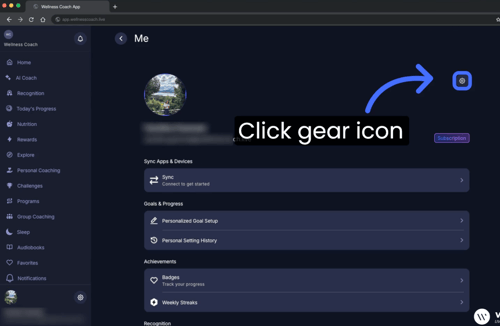
3. In the "Appearance" section. Select "Light Mode" or "Dark Mode". The app will immediately switch to the theme. No restart required.
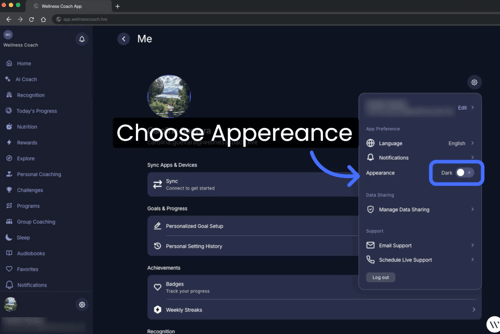
You can switch between Light and Dark Mode as often as you like — there is no limit.
Still Need Help? If you continue to have trouble, our support team is happy to assist. Email: support@wellnesscoach.live