![wellnesscoach-full-white-inline (4).png]](https://customer.wellnesscoach.live/hs-fs/hubfs/wellnesscoach-full-white-inline%20(4).png?height=40&name=wellnesscoach-full-white-inline%20(4).png)
Our AI-powered technology makes healthy eating effortless by removing the need for manual data entry. By simply taking a photo of your meal, the app instantly scans it to provide a detailed breakdown of nutritional facts and logs it to your profile.
1. Watch Tutorial Video here
2. Access Guide Flyer here
Step-by-Step Guide: Log Meals with Nutrition Tracker
Note: While the screenshots below show the desktop app, you can follow the exact same steps on your phone using the mobile app.
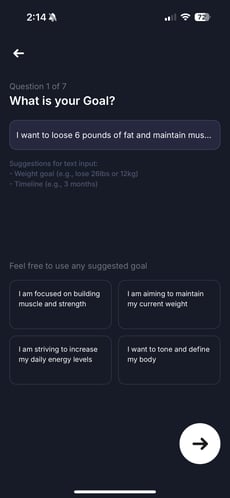
- Set up your personalized nutrition plan by answering a few short questions to get customized calorie and macronutrient targets.
Optionally include GLP-1 usage or blood test results for deeper insights.
Set specific goals like "build muscle" or "boost vitamin intake" for a customized experience
.
- Go to your home screen to find the Nutrition Tracker under Today’s Progress.
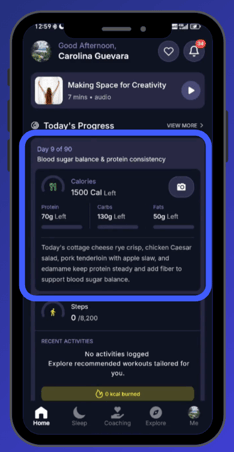
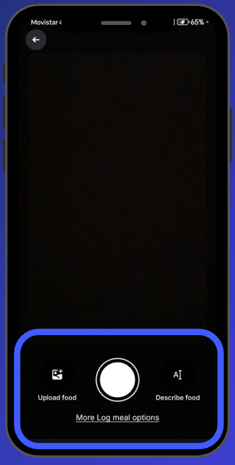
- To log a meal, tap the camera icon and choose your preferred logging method. You can snap a photo, upload an image from your library, or describe your meal in writing. For additional options, tap "More Log meal options".
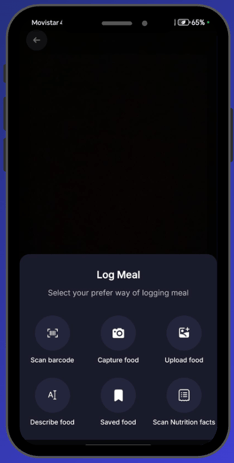
Note: This section resets every 24 hours; once you have logged your first meal, the button will be replaced by the Nutrition card, which you can simply tap to add any additional meals throughout the day. - Select your meal type, such as breakfast, lunch, dinner, snack, beverage, or supplement—to log it.
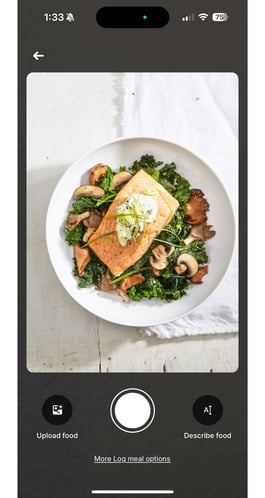
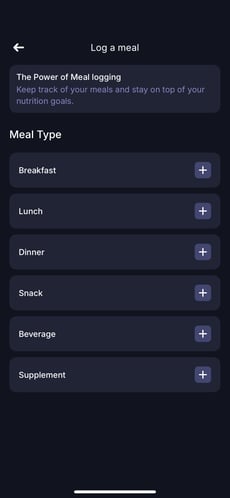
- Each meal is instantly analyzed to provide calorie and macronutrient insights, along with actionable tips to make your meals healthier. Your meal history is stored, helping you make informed decisions about your diet.
-
-
-
Every meal now gets a score (up to 100) based on how well it matches your goals.
-
Optimal: Strong nutritional balance, good variety, and well-portioned choices.
-
Balanced: Good overall nutrition with minor adjustments to improve balance.
-
Moderate: Fair meal composition, moderate nutrients, and room for variety.
-
Low Nutritional Value: Not the most nutritious, but totally okay to enjoy sometimes.
-
Meal Scores
See how each meal supports your goals, from Optimal to Use in Moderation
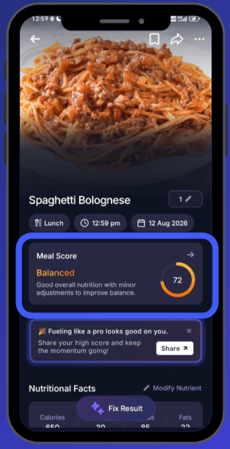
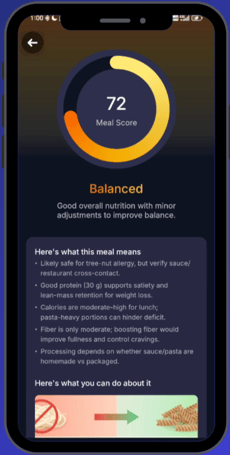
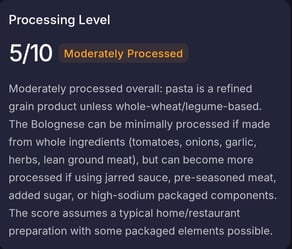
Plus, understand how processed your meal is.
-
-
What you can do on the Meal Details Page
Once redirected to the meal details page, you have full control over your logged meal, where you can:
- Save your favorite meals by tapping the bookmark icon.
- Edit the date/time by tapping the pencil icon.
- Adjust portion sizes with 0.5 decimal increments for precise tracking.
- Modify nutritional facts if needed.
- View full nutritional details for deeper insights.
- Rate your experience and accuracy to help improve AI predictions.
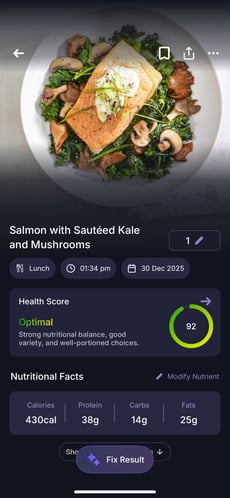
If needed, you can update results by tapping "Update Results" at the bottom, tell our AI what to change, for example: "I only ate half of this meal."
.png?width=230&height=499&name=IMG_5897%20(1).png)
Access All Your Meals Details History
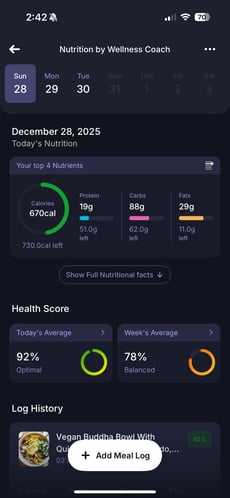
To view your logged meals and nutrition insights, simply tap on the "Nutrition by Wellness Coach" section under Today's Progress on your home screen.
On this page, you can see details of all the meals you've tracked in the last 24 hours. Here’s what you can do:
-
Daily and Weekly Health Scores
Get or weekly daily average showing how all your meals add up. - See yout TOP 4 Macros and Micros consumed, and re-arranged if needed it.
- Scroll through meal history, thanks to the calendar at the top.
Explore More Options to Enhance Your Experience
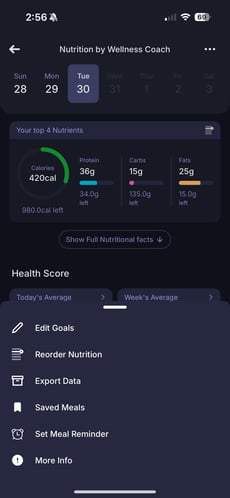
In the Nutrition page, tap on the three dots at the top left corner to access additional features:
- Edit your nutrition goals and answers from the questions you answered at the beginning at anytime. Go to "Me" on the lower navigation bar on> Goasl & Progress> Personalized Goal Set up.
- Reorder nutrition settings for a personalized view.
- Export data for your nutrition coaching sessions.
- Access your saved meals for quick logging.
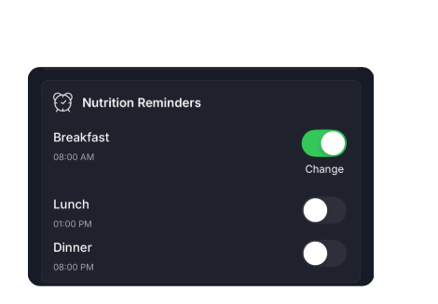
- Set meal reminders to stay on track.
- Share Your Wins
Share your meals and Meal Scores with friends and family on social media.
.png?width=230&height=499&name=IMG_5898%20(1).png)
How to Set Meal Reminders:
- On the Nutrition page, tap the three dots in the top left corner.
- Select “Set Meal Reminder” from the menu.
- You’ll be redirected to the Reminders page.
- Choose the time that works best for you and set your reminder.
Some of the most favorite capabilities:
- Meal Score: Get a goal-based score (up to 100%) for every meal, ranging from Optimal to Needs Attention.
- Processing Insights: Track how processed your meals are with our new transparent scoring.
- Daily Meal Score: Monitor your consistency with an automated daily average of everything you eat.
- Smart Tips: Receive AI advice on pairing nutrients, boosting absorption, and making healthy swaps.
- Meal Type Selection: Categorize logs as Breakfast, Lunch, Dinner, Snack, Beverage, or Supplement.
- Social Sharing: Easily share your meals and health scores with friends and family on social media.
Other Helpful links:
Nutrition Siri and Widgets
- Adding the Nutrition Widget on iPhone
- Adding the Nutrition Widget on Android
- Configure Widgets, Action Button & Siri to Open the Meal Camera in Nutrition Tracker
- Configure Siri to Open the Meal Camera in Nutrition Tracker
- Configure Action Button for the Meal Camera in Nutrition Tracker
How to use Nutrition Tracker
- How to Delete an Incorrectly Logged Meal in the Wellness Coach App?
- How to Manage Notifications and Set Reminders on Wellness Coach
- How the Health Score Is Calculated in The AI Nutrition Tracker
Support
Live Video Support
Schedule a live support session with our team for real-time, face-to-face help whenever you need it.
Learn more about how to book
[Book live support]
Email Support
Reach out to support@wellnesscoach.live for assistance. This contact is also available directly inside the app. Responses may take up to 24 hours.
[Email us]