![wellnesscoach-full-white-inline (4).png]](https://customer.wellnesscoach.live/hs-fs/hubfs/wellnesscoach-full-white-inline%20(4).png?height=40&name=wellnesscoach-full-white-inline%20(4).png)
1. Introduction
Wellness Coach supports SCIM 2.0 provisioning for many identity providers:
-
Okta
-
Microsoft Entra ID (Azure AD)
-
Cyberark
-
Jumpcloud
-
Ping Identity
-
Google
This guide explains how to configure SCIM provisioning using:
-
Wellness Coach default SCIM attribute mapping, or
-
Your own custom attribute keys, mapped to Wellness Coach Key system
Wellness Coach platform supports:
-
User creation
-
User updates
-
User deactivation
-
Custom attribute ingestion
-
Enterprise SCIM extension support
1.1 What Is SCIM?
SCIM (System for Cross-domain Identity Management) standardizes how identity providers sync user profiles into applications like Wellness Coach.
A SCIM “User” is represented through:
-
Core Schema
urn:ietf:params:scim:schemas:core:2.0:User -
Enterprise User Schema Extension
urn:ietf:params:scim:schemas:extension:enterprise:2.0:User -
(Optional) Custom Enterprise Extension
Wellness Coach requires that all custom attributes also use the enterprise extension namespace for consistency.
1.2 How Wellness Coach Uses Wellness Keys
Internally all SCIM attributes are standardized to
Wellness Coach Keyfields.Example:
SCIM Attribute Received
Wellness Coach Key Stored
enterprise:employeeNumberemployee_identerprise:joiningDatejoining_dateenterprise:departmentdepartment
1.3 Default vs Custom Attribute Mapping
Default Attribute Mapping
In the default flow:
-
Wellness Coach gets attributes using the default SCIM attribute paths, such as:
urn:ietf:params:scim:schemas:extension:enterprise:2.0:User:employeeNumber urn:ietf:params:scim:schemas:extension:enterprise:2.0:User:joiningDate urn:ietf:params:scim:schemas:extension:enterprise:2.0:User:department -
Wellness Coach resolves all incoming attributes → internal
Wellness Coach Key.
Example: Default employee_id sync
Client SCIM payload:
"urn:ietf:params:scim:schemas:extension:enterprise:2.0:User" : { "employeeNumber": "123456"}
Wellness Coach maps this to:
employee_id = "123456"Custom Key mapping Flow (If you want to use custom attribute names)
You can define custom attribute names (example: “empNum”, “divisionCode”) and map them to our internal
Wellness Coach Key.Steps:
-
You can create custom keys inside Wellness Coach Portal
-
Step 1. Sign in to the Wellness Coach Portal: Portal | Wellness Coach
-
Step 2. In the left sidebar, go to Advanced → SSO Configuration.
-
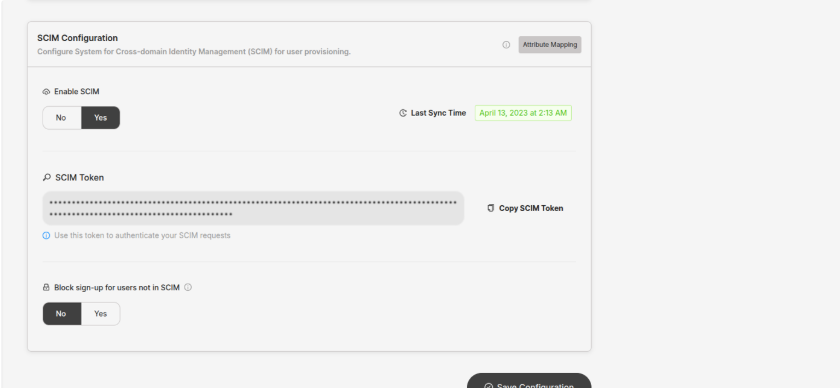
Step 3. In SCIM Configuration, click Attribute Mapping to open the mapping drawer.
-
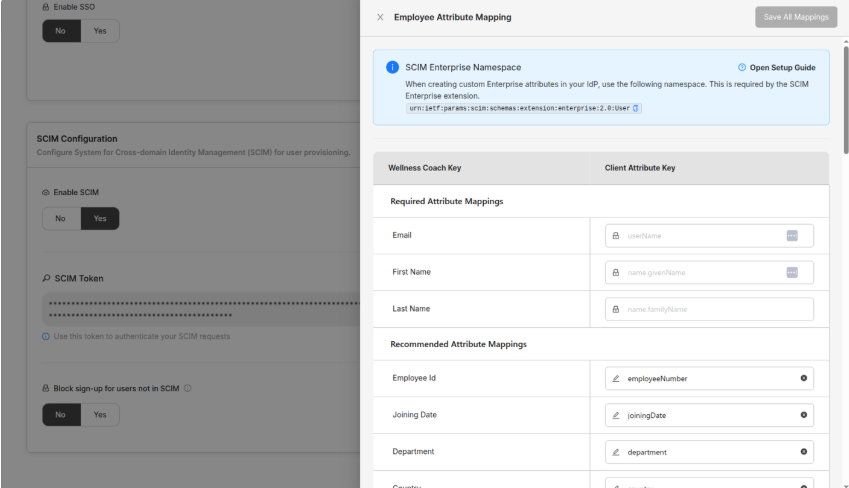
Step 4. For each field, map your Custom Attribute Key to the corresponding Wellness Coach Key, then click Save All Mappings
-
-
In Okta/Azure, you must send your custom attributes under enterprise extension namespace:
urn:ietf:params:scim:schemas:extension:enterprise:2.0:User:empNum
urn:ietf:params:scim:schemas:extension:enterprise:2.0:User:divisionCode
Important: Required Namespace
All custom attributes MUST use:
urn:ietf:params:scim:schemas:extension:enterprise:2.0:User
2. Standardized Wellness Coach Attribute Mapping Table
Below is a summary of the consolidated mapping table Clients may use:
-
Our default SCIM attribute names, OR
-
Their own custom client keys mapped to
Wellness Coach Key
Wellness Coach Key
SCIM Namespace
Default SCIM Attribute
Notes
email
Core
userName
Required
first_name
Core
name.givenName
Required
last_name
Core
name.familyName
Required
employee_id
Enterprise
employeeNumberRecommended
joining_date
Enterprise
joiningDateRecommended
department
Enterprise
departmentRecommended
country
Core
country
Recommended
region
Core
region
Recommended
office_location
Core
locality
Recommended
gender
Enterprise
gender
Recommended
dob
Enterprise
dob
Recommended
personal_email
Enterprise
secondaryEmail
Optional
phone_number
Core
phoneNumbers
Optional
address
Core
addresses
Optional
job_title
Core
title
Optional
job_code
Enterprise
jobCode
Optional
job_level
Enterprise
jobLevel
Optional
job_family
Enterprise
jobFamily
Optional
business_unit
Enterprise
businessUnit
Optional
employment_type
Enterprise
employmentType
Optional
employee_group
Enterprise
employeeGroup
Optional
manager_name
Enterprise
displayName
Optional
manager_email
Enterprise
managerEmail
Optional
cost_center
Enterprise
costCenter
Optional
employment_end_date
Enterprise
employmentEndDate
Optional
termination_reason
Enterprise
terminationReason
Optional
salary_amount
Enterprise
salaryAmount
Optional
salary_currency
Enterprise
salaryCurrency
Optional
salary_frequency
Enterprise
salaryFrequency
Optional
benefit_status
Enterprise
benefitStatus
Optional
health_insurance
Enterprise
healthInsurance
Optional
retirement_plan
Enterprise
retirementPlan
Optional
member_id
Enterprise
memberId
Optional
member_type
Enterprise
memberType
Optional
last_review_date
Enterprise
lastReviewDate
Optional
performance_rating
Enterprise
performanceRating
Optional
certifications
Enterprise
certifications
Optional
visa_status
Enterprise
visaStatus
Optional
work_authorization_expiry
Enterprise
workAuthorizationExpiry
Optional
background_check
Enterprise
backgroundCheck
Optional
3. SCIM Workflow Summary
3.1 What the Client Sends (IdP → Wellness Coach)
Always SCIM namespace attributes
3.2 What Wellness Coach Receives
We parse SCIM JSON and map values to our Wellness Coach Key system.
3.3 What Client Can Customize
-
Attribute names inside IdP (client_key)
-
But namespace stays the same
3.4 What Client Cannot Change
-
SCIM extension namespace
-
Supported SCIM schema structure
4. Okta SCIM Configuration Guide
4.1 Before Starting (Client Portal Setup)
Client must obtain:
-
SCIM Base URL
-
SCIM Bearer Token
-
Default attribute mapping list (if using default flow)
-
Client key → Wellness Coach Key mapping (if using custom flow)
4.2 Add SCIM App in Okta
-
Navigate → Applications → Browse App Catalog
-
Search → Wellness Coach SCIM
-
Add the application
-
Go to Provisioning → Integration
-
Enter
-
SCIM URL
-
Token
-
-
Click Test Connection → Should succeed
4.3 Configure “To App” Attribute Mappings
For each attribute:
If using default mapping:
Use the SCIM attribute path from the table above(knowledge-base: SCIM Provisioning for Wellness Coach | 2. Standardized Wellness Coach Attribute Mapping Table )
Example:urn:ietf:params:scim:schemas:extension:enterprise:2.0:User:employeeNumberIf using client custom keys:
Map Okta profile attribute → SCIM attribute:
urn:ietf:params:scim:schemas:extension:enterprise:2.0:User:clientKeyNameExamples:
-
empNum -
divisionName -
costCode
4.4 Lifecycle Settings
Enable:
-
✔ Create Users
-
✔ Update Users
-
✔ Deactivate Users
5. Microsoft Entra ID (Azure) SCIM Configuration Guide
5.1 Add Enterprise Application
-
Entra Portal → Enterprise Applications
-
New Application
-
Search “Wellness Coach SCIM”
5.2 Configure Provisioning
-
Open → Provisioning
-
Set mode → Automatic
-
Enter SCIM URL + Token
-
Test Connection
5.3 Mapping Attributes
Open:
Provisioning → Mappings → Provision Azure Active Directory Users
For each attribute:
Default Flow:
Use attribute paths from the above table(knowledge-base: SCIM Provisioning for Wellness Coach | 2. Standardized Wellness Coach Attribute Mapping Table )
Custom Flow:
Client attribute must be placed under:
urn:ietf:params:scim:schemas:extension:enterprise:2.0:User:[clientKey]Azure often prefixes custom attributes with:
extension_{GUID}_{AttributeName}Clients may map this → SCIM enterprise extension attribute.
5.4 Matching Identifier
Recommended:
-
userName(email) -
Or primary email
5.5 Provisioning Cycle
Azure sync runs automatically every ~40 minutes.
6. Custom Attribute Handling (Client-Defined Keys)
Clients may add their own attributes
Example Custom SCIM Payload:
"urn:ietf:params:scim:schemas:extension:enterprise:2.0:User": {
    "jobCode": "J123",
"area": "EMEA",}Requirements:
-
Must live under enterprise namespace
-
Must be mapped in Wellness Portal
-
Must be mapped in IdP (Okta/Azure)
7. Troubleshooting & Common Errors
Issue
Cause
Fix
Attribute missing
Wrong namespace
Must use enterprise extension namespace
Wrong value type
Formatting mismatch
Ensure dates: YYYY-MM-DD
User not updating
Attribute not included in SCIM payload
Check IdP mapping
User duplication
Wrong matching attribute
Use
userNameProvisioning errors
Missing custom key mapping
Add client_key → Wellness Coach Key in portal
8. Best Practices
-
Always test with one or two users first
-
Keep attribute names consistent between IdP & Wellness Coach portal
-
Document custom client key mappings
-
Avoid spaces or special characters in client keys
-
Use ISO-8601 date formats
-
Monitor Okta/Azure provisioning logs regularly
-