![wellnesscoach-full-white-inline (4).png]](https://customer.wellnesscoach.live/hs-fs/hubfs/wellnesscoach-full-white-inline%20(4).png?height=40&name=wellnesscoach-full-white-inline%20(4).png)
SCIM Configuration Guide
Wellness Coach’s System for Cross-domain Identity Management (SCIM) integration allows you to use data from your SCIM identity provider (IdP) to manage users within Wellness Coach. With this integration, your users will be automatically added, changed, and archived in Wellness Coach based on data sent from your SCIM IdP. Once you configure this integration and import your users, you’ll be able to manage all your users in one place.
A SCIM “User” is represented through:
-
Core Schema
urn:ietf:params:scim:schemas:core:2.0:User -
Enterprise User Schema Extension
urn:ietf:params:scim:schemas:extension:enterprise:2.0:User -
(Optional) Custom Enterprise Extension
Wellness Coach requires that all custom attributes also use the enterprise extension namespace for consistency.
Wellness Coach platform supports:
-
User creation
-
User updates
-
User deactivation
-
Custom attribute ingestion
-
Enterprise SCIM extension support
Prerequisites
Before you configure SCIM, make sure that you meet the following requirements:
-
You must have completed SSO integration with Wellness Coach for the IdP you use. See the article below:
-
You have access to your SCIM Token and Tenant URL in your Account Settings. For more information about where you can find these items, see the Configure SCIM section below.
-
You know which users you would like to sync from your SCIM IdP to Wellness Coach.
Configure SCIM
-
Step 1. Sign in to the Wellness Coach Portal: https://portal.wellnesscoach.live
-
Step 2. In the left sidebar, go to Advanced → SSO Configuration.
-
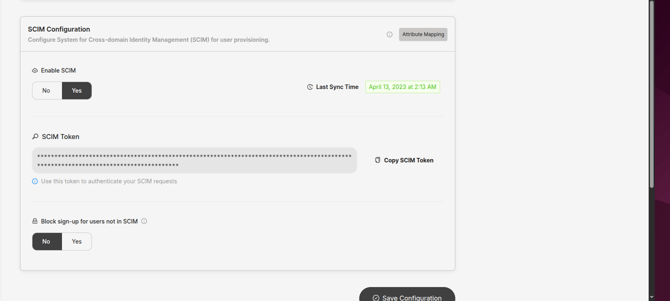
Step 3. In SCIM Configuration, enable SCIM and save the configuration.
-
When you enable SCIM and click the Save Configuration button, a SCIM token will be generated. Make sure to copy this SCIM token and save it to a place that you can easily access later.
-
Use this link for tenant URL: https://ed.wellnesscoach.live/scim for configuring SCIM on your identity provider.
Default vs Custom Attribute Mapping
Default Attribute Mapping
In the default flow:
-
Wellness Coach gets attributes using the default SCIM attribute paths, such as:
urn:ietf:params:scim:schemas:extension:enterprise:2.0:User:employeeNumber
urn:ietf:params:scim:schemas:extension:enterprise:2.0:User:joiningDate
urn:ietf:params:scim:schemas:extension:enterprise:2.0:User:department -
Wellness Coach resolves all incoming attributes → internal Wellness Coach Key.
Example: Default employee_id sync
Client SCIM payload:
"urn:ietf:params:scim:schemas:extension:enterprise:2.0:User" : {
    "employeeNumber": "123456"
}
Wellness Coach maps this to:
employee_id = "123456"Custom Key mapping Flow (If you want to use custom attribute names)
You can define custom attribute names (example: “empNum”, “divisionCode”) and map them to our internal Wellness Coach Key.
Steps:
-
You can create custom keys inside Wellness Coach Portal
-
Step 1. Sign in to the Wellness Coach Portal: https://portal.wellnesscoach.live
-
Step 2. In the left sidebar, go to Advanced → SSO Configuration.
-
Step 3. In SCIM Configuration, click Attribute Mapping to open the mapping drawer.
-
.png?width=670&height=302&name=e1d53e37-969a-4d6e-baf8-19f866a410e4%20(1).png)
Step 4. For each field, map your Custom Attribute Key to the corresponding Wellness Coach Key, then click Save All Mappings
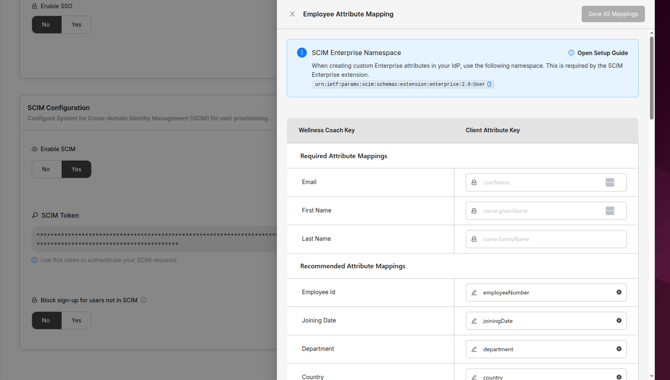
In your IdP(Okta/Azure/...), you must send your custom attributes under enterprise extension namespace:
urn:ietf:params:scim:schemas:extension:enterprise:2.0:User:empNum
urn:ietf:params:scim:schemas:extension:enterprise:2.0:User:divisionCode
Important: Required Namespace
- All custom attributes MUST use:
urn:ietf:params:scim:schemas:extension:enterprise:2.0:User
How Wellness Coach Uses SCIM attributes
Internally, all SCIM attributes are standardized to Wellness Coach Key fields.
Example:
|
SCIM Attribute Received |
Wellness Coach Key Stored |
|---|---|
|
enterprise:employeeNumber |
employee_id |
|
enterprise:joiningDate |
joining_date |
|
enterprise:department |
department |
Wellness Coach supported employee attribute list
You can define custom attribute names (example: “empNum”, “divisionCode”) in your IdP and map them to our internal Wellness Coach Key from portal.
An external namespace is only required for a custom attribute.
|
Display Name |
SCIM Key |
External Namespace |
Notes |
|---|---|---|---|
|
|
userName |
|
Required |
|
First Name |
givenName |
|
Required |
|
Last Name |
familyName |
|
Required |
|
Employee Id |
employeeNumber |
urn:ietf:params:scim:schemas:extension:enterprise:2.0:User |
Recommended |
|
Joining Date |
joiningDate |
urn:ietf:params:scim:schemas:extension:enterprise:2.0:User |
Recommended |
|
Department |
department |
urn:ietf:params:scim:schemas:extension:enterprise:2.0:User |
Recommended |
|
Country |
country |
|
Recommended |
|
Region |
region |
|
Recommended |
|
Office Location |
locality |
|
Recommended |
|
Gender |
gender |
urn:ietf:params:scim:schemas:extension:enterprise:2.0:User |
Recommended |
|
Date of Birth |
dob |
urn:ietf:params:scim:schemas:extension:enterprise:2.0:User |
Recommended |
|
Personal Email |
secondaryEmail |
urn:ietf:params:scim:schemas:extension:enterprise:2.0:User |
Optional |
|
Phone Number |
phoneNumbers |
Core |
Optional |
|
Address |
addresses |
Core |
Optional |
|
Job Title |
title |
Core |
Optional |
|
Job Code |
jobCode |
urn:ietf:params:scim:schemas:extension:enterprise:2.0:User |
Optional |
|
Job Level |
jobLevel |
urn:ietf:params:scim:schemas:extension:enterprise:2.0:User |
Optional |
|
Job Family |
jobFamily |
urn:ietf:params:scim:schemas:extension:enterprise:2.0:User |
Optional |
|
Business Unit |
businessUnit |
urn:ietf:params:scim:schemas:extension:enterprise:2.0:User |
Optional |
|
Employment Type |
employmentType |
urn:ietf:params:scim:schemas:extension:enterprise:2.0:User |
Optional |
|
Employee Group |
employeeGroup |
urn:ietf:params:scim:schemas:extension:enterprise:2.0:User |
Optional |
|
Manager Name |
displayName |
urn:ietf:params:scim:schemas:extension:enterprise:2.0:User |
Optional |
|
Manager Email |
managerEmail |
urn:ietf:params:scim:schemas:extension:enterprise:2.0:User |
Optional |
|
Cost Center |
costCenter |
urn:ietf:params:scim:schemas:extension:enterprise:2.0:User |
Optional |
|
Employment End Date |
employmentEndDate |
urn:ietf:params:scim:schemas:extension:enterprise:2.0:User |
Optional |
|
Termination Reason |
terminationReason |
urn:ietf:params:scim:schemas:extension:enterprise:2.0:User |
Optional |
|
Salary Amount |
salaryAmount |
urn:ietf:params:scim:schemas:extension:enterprise:2.0:User |
Optional |
|
Salary Currency |
salaryCurrency |
urn:ietf:params:scim:schemas:extension:enterprise:2.0:User |
Optional |
|
Salary Frequency |
salaryFrequency |
urn:ietf:params:scim:schemas:extension:enterprise:2.0:User |
Optional |
|
Benefit Status |
benefitStatus |
urn:ietf:params:scim:schemas:extension:enterprise:2.0:User |
Optional |
|
Health Insurance |
healthInsurance |
urn:ietf:params:scim:schemas:extension:enterprise:2.0:User |
Optional |
|
Retirement Plan |
retirementPlan |
urn:ietf:params:scim:schemas:extension:enterprise:2.0:User |
Optional |
|
Member Id |
memberId |
urn:ietf:params:scim:schemas:extension:enterprise:2.0:User |
Optional |
|
Member Type |
memberType |
urn:ietf:params:scim:schemas:extension:enterprise:2.0:User |
Optional |
|
Last Review Date |
lastReviewDate |
urn:ietf:params:scim:schemas:extension:enterprise:2.0:User |
Optional |
|
Performance Rating |
performanceRating |
urn:ietf:params:scim:schemas:extension:enterprise:2.0:User |
Optional |
|
Certifications |
certifications |
urn:ietf:params:scim:schemas:extension:enterprise:2.0:User |
Optional |
|
Visa Status |
visaStatus |
urn:ietf:params:scim:schemas:extension:enterprise:2.0:User |
Optional |
|
Work Authorization Expiry |
workAuthorizationExpiry |
urn:ietf:params:scim:schemas:extension:enterprise:2.0:User |
Optional |
|
Background Check |
backgroundCheck |
urn:ietf:params:scim:schemas:extension:enterprise:2.0:User |
Optional
|
Supported Providers
Now that you have enabled SCIM in your Wellness Coach portal, you can finish the connection in your SCIM IdP. Wellness Coach supports SCIM 2.0 provisioning for many identity providers:
-
Cyberark
-
Jumpcloud
-
Ping Identity
-
Google
Note: The instructions outlined in the guides below are the only configurations supported by Wellness Coach. Any deviations from the steps outlined in these articles may cause issues with user provisioning.
To configure SCIM in the IdP that you're using, you must have to setup SSO for the IdP. See the articles below: