![wellnesscoach-full-white-inline (4).png]](https://customer.wellnesscoach.live/hs-fs/hubfs/wellnesscoach-full-white-inline%20(4).png?height=40&name=wellnesscoach-full-white-inline%20(4).png)
The Wellness Coach app is available as a pre-configured integration in Microsoft Entra ID (Azure AD) App Gallery. This guide walks you through installing the app, configuring single sign-on (SSO), and setting up automated user provisioning (SCIM).
After setup, your employees can sign in to Wellness Coach using their corporate credentials, and user accounts are automatically created, updated, and deactivated based on your identity provider (IdP) assignments.
What You Will Need
| Item | Where to Get It |
| Relay State | Wellness Coach Admin Portal > Advanced > SSO Configuration |
| SCIM Bearer Token | Wellness Coach Admin Portal > Advanced > Provisioning > SCIM > Enable SCIM Provisioning |
| Admin access to Azure | Your organization's IdP admin console |
Note: Contact your Wellness Coach account manager if you do not see the SSO or SCIM
settings in your admin portal.
Setup Time
With the pre-configured app, setup takes approximately 10-15 minutes (compared to 30+ minutes for manual SAML configuration).
Install from Microsoft Entra ID (Azure AD)
1. Find the App
1. Sign in to the Azure portal (portal.azure.com).
2. Navigate to Microsoft Entra ID > Enterprise applications.
3. Click + New application.
4. Search for "Wellness Coach" in the gallery.
5. Select the Wellness Coach app and click Create.
2. Configure SSO
-
In the new Wellness Coach app, go to Single sign-on.
- SAML is pre-selected. The Basic SAML Configuration is pre-filled.
- Click Edit on Basic SAML Configuration and set only:
| Field | Action |
| Relay State | Enter your corporate_id from Wellness Coach Admin Portal > SSO Settings |
| All other fields | Pre-configured — do not change |
4. Click Save.
Note: The Relay State is required. Without it, IdP-initiated SSO (clicking the app in My Apps) will not work.
3. Configure Provisioning (SCIM)
-
Go to Provisioning > click Get started.
- Set Provisioning Mode to Automatic.
- In Admin Credentials, enter:
| Field | Value |
| Tenant URL | Pre-configured (do not change) |
| Secret Token | Paste your SCIM Bearer Token from Wellness Coach Admin Portal > SCIM Settings |
4. Click Test Connection. You should see "The supplied credentials are authorized to enable provisioning."
5. Click Save.
4. Start Provisioning
- Under Provisioning > Settings, set Scope to "Sync only assigned users and groups".
- Set Provisioning Status to On.
- Click Save.
Azure will start an initial provisioning cycle. This may take 20-40 minutes to complete for all assigned users.
Tip: Use "Provision on demand" to instantly provision a specific user for testing.
5. Assign Users & Groups
1. Go to Users and groups (in the left menu).
2. Click + Add user/group.
3. Select users or groups who should access Wellness Coach.
4. Click Assign.
Assigned users will be provisioned in Wellness Coach during the next provisioning cycle.
6. Download IdP Metadata from Azure
Before testing SSO, you need to upload the Azure IdP metadata to Wellness Coach
- In the Wellness Coach app in Azure, go to Single sign-on.
- Scroll to Section 3: SAML Certificates.
- Click Download next to "Federation Metadata XML" to download the file. Or copy the "App Federation Metadata Url".
- Go to Wellness Coach Admin Portal > Advanced > SSO Configuration.
- Enable SSO by toggling it to "Yes".
- Paste the metadata URL in the "Fetch from URL" field and click Fetch, or download the XML and upload it.
- Click Save SSO Configuration to complete the configuration.
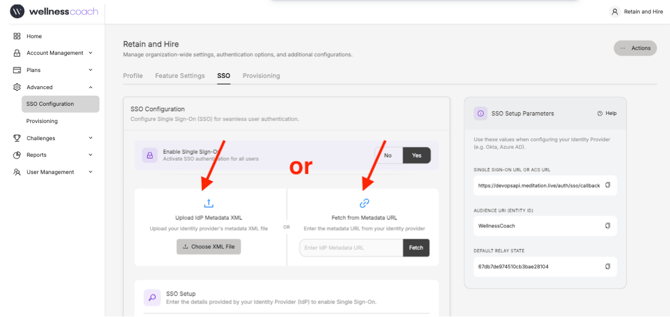
Note: This step completes the trust relationship between Azure and Wellness Coach. SSO will not work until this is done.
7. Test SSO
-
Go to myapps.microsoft.com.
-
Find and click the Wellness Coach tile.
-
You should be automatically signed in to Wellness Coach.
Alternatively, use the "Test" button in Single sign-on > Test single sign-on to validate.
Troubleshooting
1. SSO Errors
| Symptom | Likely Cause | Fix |
| Error page after clicking app tile |
Relay State not set | Enter your corporate_id in the Relay State field |
| "Corporate SSO was not found" |
Wrong Relay State value | Verify the corporate_id from WC Admin Portal > SSO Settings |
| "Email mismatch" error | IdP email differs from WC account |
Ensure NameID maps to the same email domain registered in WC |
| Redirect loop | ACS URL misconfigured | Do not modify the pre-configured ACS URL |
| Certificate error | IdP cert expired or changed | Re-download certificate from your IdP and update WC SSO configuration |
2. SCIM / Provisioning Errors
| Symptom | Likely Cause | Fix |
| "Test Connection" fails | Wrong token or URL | Regenerate the SCIM token in WC Admin Portal and paste again |
| Users not appearing in Wellness Coach |
Provisioning not started or user not assigned | Verify provisioning is enabled/on and user is assigned to the app |
| User created but cannot log in via SSO |
SSO not configured or wrong Relay State |
Complete the SSO configuration with correct Relay State |
| SCIM token expired | Token has a 1-year expiry | Generate a new token in WC Admin Portal > SCIM Settings |
| Azure provisioning stuck in "initial cycle" |
Large user set or rate limiting | Wait for the cycle to complete (can take hours for 1000+ users) |
3. Where to Get Your Relay State and SCIM Token
Both values are available in the Wellness Coach Admin Portal:
1. Sign in to the Wellness Coach Admin Portal as an enterprise administrator.
2. Navigate to Settings > SSO Configuration.
3. Your Relay State (corporate_id) is displayed on this page.
4. Navigate to Settings > SCIM Configuration.
5. Click Generate Token to create a new SCIM bearer token.
Note: If you do not see these settings, contact your Wellness Coach account manager to enable enterprise SSO for your organization.
Support
If you encounter issues that are not covered in the troubleshooting section above, contact
Wellness Coach support Email: support@wellnesscoach.live