![wellnesscoach-full-white-inline (4).png]](https://customer.wellnesscoach.live/hs-fs/hubfs/wellnesscoach-full-white-inline%20(4).png?height=40&name=wellnesscoach-full-white-inline%20(4).png)
Log in to the mobile app. Sign up by following the next steps:
-
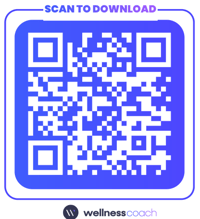
Scan the QR code or click here to download the Wellness Coach app, then select your language
-
Enter your first name, last name and work email, confirm you are not a robot.
-
Go to your email inbox and insert your verification passcode to confirm email
-
After you verify your email, you’ll be invited to add another layer of protection for your account.
You can choose one of two options:
- Authenticator App (Google Authenticator, Microsoft Authenticator, 1Password, etc.)
- A QR code will be displayed for you to scan using an authenticator app such as Google Authenticator, Microsoft Authenticator, or 1Password.
- The app will generate a unique 6-digit code that refreshes every 30 seconds.
- Each time you log in, you will use a new code from the app to complete the sign-in process.
- Phone Number (Text Message or Voice Call)
- Enter your phone number to set up verification.
- Choose to receive a 6-digit verification code via text message or automated voice call.
- For each login, you will receive a new code by text or call to confirm your identity.
-
You will be redirected to the homepage. Start exploring!
Log in to the web version by following the steps below:
1. Navigate to https://app.wellnesscoach.live/ on your web browser, then select your language
2. Enter your first name, last name and work email
3. Go to your email inbox and insert your verification passcode
4. After you verify your email, you’ll be invited to add another layer of protection for your account.
You can choose one of two options:
- Authenticator App (Google Authenticator, Microsoft Authenticator, 1Password, etc.)
- A QR code will be displayed for you to scan using an authenticator app such as Google Authenticator, Microsoft Authenticator, or 1Password.
- The app will generate a unique 6-digit code that refreshes every 30 seconds.
- Each time you log in, you will use a new code from the app to complete the sign-in process.
- Phone Number (Text Message or Voice Call)
- Enter your phone number to set up verification.
- Choose to receive a 6-digit verification code via text message or automated voice call.
- For each login, you will receive a new code by text or call to confirm your identity.
5. You will be redirected to the homepage. Start exploring!