Skip to content
English
  • There are no suggestions because the search field is empty.

How do I create my Wellness Coach account? Download and Sign Up 

If you're ready to start using the Wellness Coach app, here's a simple step-by-step guide to get you started. This process will help you create an account, verify your email, and begin exploring the app's features.

4-digit verification code Process

Mobile app:

1. Head to the App Store if you're using an iOS device or the Google Play Store for Android users. Search for Wellness Coach and download the app to your smartphone or tablet.

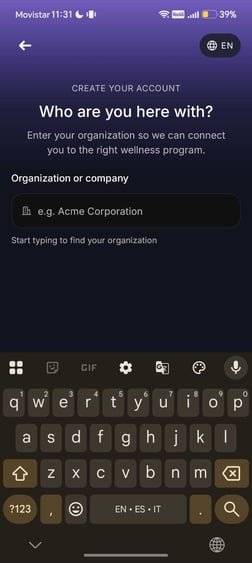
2. After installing the app, open it. You'll be prompted to enter your Name and create the account using your work email. This step helps ensure you're part of your organization's community.

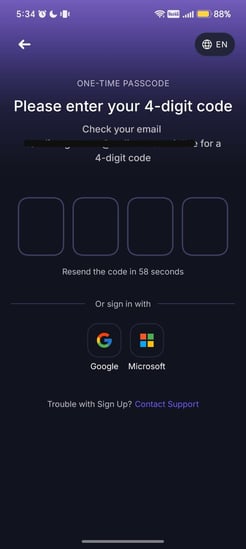
4. Then, you'll receive an email with a 4-digit verification code. Check your inbox (and spam folder if you don't see it right away).

5. After entering the 4-digit code, your screen will refresh, indicating that your account is set up and you're logged in. 

Note: Just a quick reminder: If your workplace uses Single Sign-On (SSO), you'll need to use that to log in to Wellness Coach. Please make sure to create your account with your work email, not a personal one. This way, you'll be taken to the correct SSO page.

Web App:

1. Head to the web version of Wellness Coach. Here

2. After installing the app, open it. You'll be prompted to enter your name and create the account using your work email. This step helps ensure you're part of your organization's community.

4. Then, you'll receive an email with a 4-digit verification code. Check your inbox (and spam folder if you don't see it right away).

5. After entering the 4-digit code, your screen will refresh, indicating that your account is set up and you're logged in. 

Note: Just a quick reminder: If your workplace uses Single Sign-On (SSO), you'll need to use that to log in to Wellness Coach. Please make sure to create your account with your work email, not a personal one. This way, you'll be taken to the correct SSO page.


SSO Login Process

1. Head to the App Store if you're using an iOS device or the Google Play Store for Android users. Search for Wellness Coach and download the app to your smartphone or tablet.

2. After installing the app, open it. You'll be prompted to enter your name and create the account using your work email. This step helps ensure you're part of your organization's community.

Note: If your workplace uses Single Sign-On (SSO), you'll need to use that to log in to Wellness Coach. Please make sure to create your account with your work email, not a personal one. This way, you'll be taken to the correct SSO page.

 If you encounter the following or a similar error, please contact your local IT team. They can assist with configuring SSO on your device so you can successfully access your Wellness Coach account. 


Employee ID number Login Process

1. Head to the App Store if you're using an iOS device or the Google Play Store for Android users. Search for Wellness Coach and download the app to your smartphone or tablet.

2. After installing the app, open it. You'll be prompted to enter your name and create the account using your work email and your Employee ID number. This step helps ensure you're part of your organization's community.

Note: If you encounter the following or a similar error and you are a new hire, it may mean that you have not yet been added to the eligibility file. Eligibility files are typically updated and pushed weekly.

Please allow up to 7 business days for your information to be added, then try logging in again. If you are still unable to access your account, please contact Support so we can check your eligibility status.


Email (Auth0) Sign-In Process 

  1. Click here to download the Wellness Coach app, then select your language
  2. Enter your first name, last name and work email, confirm you are not a robot.
  3. Go to your email inbox and insert your verification passcode to confirm email
  4. After you verify your email, you’ll be invited to add another layer of protection for your account. You can choose one of two options:
    • Authenticator App (Google Authenticator, Microsoft Authenticator, 1Password, etc.)
    • A QR code will be displayed for you to scan using an authenticator app such as Google Authenticator, Microsoft Authenticator, or 1Password.
    • The app will generate a unique 6-digit code that refreshes every 30 seconds.
    • Each time you log in, you will use a new code from the app to complete the sign-in process.
    • Phone Number (Text Message or Voice Call)
    • Enter your phone number to set up verification.
    • Choose to receive a 6-digit verification code via text message or automated voice call.
    • For each login, you will receive a new code by text or call to confirm your identity.

You will be redirected to the homepage. Start exploring!

Got questions? Send us a message at support@wellnesscoach.live. We're here to assist you!