![wellnesscoach-full-white-inline (4).png]](https://customer.wellnesscoach.live/hs-fs/hubfs/wellnesscoach-full-white-inline%20(4).png?height=40&name=wellnesscoach-full-white-inline%20(4).png)
Note: The Self-Implementation Quick Guide below only applies to NEW customers. If you are already a customer of Wellness Coach, you won't need to complete the guide. Just log in and use the links below to learn the basics on how to navigate the capabilities available for now.
PART I
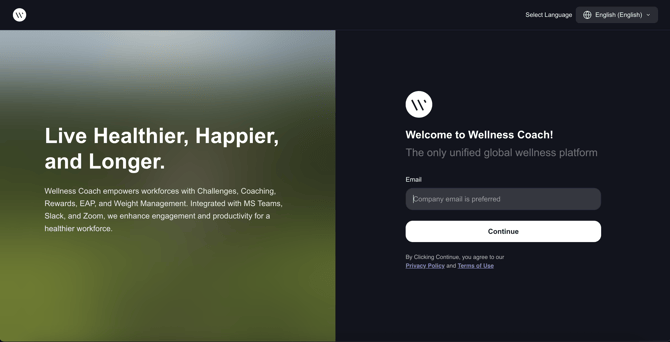
How to Log in to the Admin Portal
-
Log in at https://portal.wellnesscoach.live
-
Type in your work email address.
- Click Continue and follow your company's progress according to your company's set-up.
-
You will now be redirected to your Admin Portal landing page
-
PART II
Self-Implementation Quick Guide: (New Customers and Free Trials)
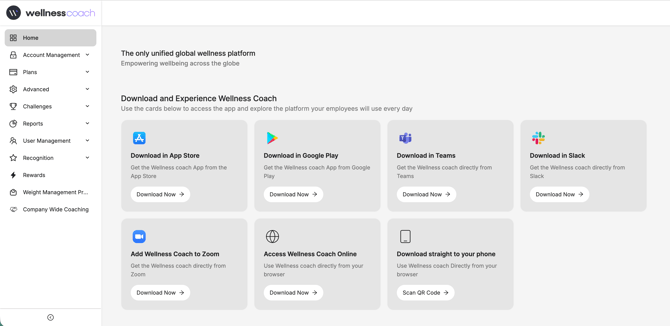
Step 1: Navigating the Landing Page
Discover Download Options
On the landing page, you will see cards for all the places where you can download Wellness Coach:
App Store, Google Play Store, Microsoft Teams, Slack, Zoom, Mobile App
We highly recommend downloading Wellness Coach on all the platforms you use so you can experience the app firsthand and navigate the features before your team does.
Explore Additional Resources
Scroll to the bottom of the page to find cards that help you learn more about:
-
Roles & Permissions
-
User Management
-
Available Plans & Subscriptions
Step 2: Account Management
Note: This step is required for new customers only. If your organization is already a partner and you are simply transitioning to the admin portal, you may skip this step.
Follow these steps to manage your account details:
-
Go to Account Management
-
From the main menu, click Account Management.
-
Select Account Profile.
-
-
Update your details
-
Enter your Company Name, Display Name, and Company Email Domains.
-
Upload your Company Logo.
Contact support if you need to update your company name or email domain.
-Sep-03-2025-11-18-47-4405-PM.png?width=670&height=209&name=Untitled%20design%20(2)-Sep-03-2025-11-18-47-4405-PM.png)
-
Step 3: Assign Roles & Permissions (Optional)
You can assign roles to colleagues who will help manage the portal.
-
Navigate to User Management
-
From the main menu, click User Management.
-
Select Roles & Permissions.
-
-
Assign roles
-
Choose a colleague and assign them one of the available roles:
-
Administrator
-
-
-
Create new roles (if needed)
-
Click + Create a Role to set up a custom role.
-
View assigned roles: Once roles are assigned, you can view them under the Administration tab.
-3.png?width=670&height=377&name=Untitled%20design%20(3)-3.png)
Note for Existing Customers: If you have already configured SSO and SCIM or employee eligibility, you may skip step 4. This information is only for future reference, should you need to add new eligible groups. Your team members currently have full access to Wellness Coach.
Step 4: Set up your members' eligibility (Assign Licenses)
You can assign licenses so employees can access the Wellness Coach app.
-
During Free Trial: You can assign up to 10 licenses.
-
Paid Accounts: You can assign as many licenses as included in your plan.
For new customers: How to Assign Licenses
Click on the option you prefer to learn the step-by-step instructions on how to set it up.
✅ Your Basic Admin Portal setup is now complete!
👉 Explore the rest of the core features and learn how to navigate and use them:
- How to Deactivate a User in the Admin Portal
- Introduction: Admin Portal Guide
- Understanding and Navigating Your HR Dashboard in the Admin Portal
- Complete List of Parameters for Eligibility File Setup
- How to Configure SFTP credentials
- Setting Up an Eligibility File via the Admin Portal
- How to Add Company Email Domains to Enable Employee Access
- User Management: Roles & Permissions - Admin Portal
- Advanced: SSO and SCIM Configuration and Employee Template - Admin Portal
- How to Activate Challenges-Admin Portal
- Configuring Recognition in the Admin Portal
- Dependents Report- Admin Portal
- Reports & Analytics - Admin Portal
- Plans & Billing - Admin Portal