![wellnesscoach-full-white-inline (4).png]](https://customer.wellnesscoach.live/hs-fs/hubfs/wellnesscoach-full-white-inline%20(4).png?height=40&name=wellnesscoach-full-white-inline%20(4).png)
Note: The instructions below and the tutorial video are for work email sign up. Your company may have other way to sign up here are the other options:
1. Watch Tutorial Video for Work Email Sign Up
Step-by-Step Guide: Sign Up with your Work Email
1. Click here or head to the App Store if you're using an iOS device, or the Google Play Store for Android users. Search for Wellness Coach and download the app to your smartphone or tablet.
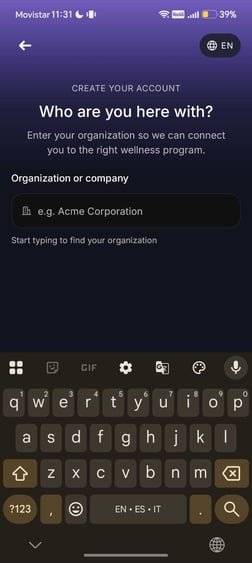
2. After installing the app, open it. You'll be prompted to enter the Name of your Organization or Company.
3. Then you will be prompted to enter your information. First Name, Last Name, and work email address.
.jpeg?width=251&height=561&name=WhatsApp%20Image%202026-09-15%20at%2010.33.53%20(2).jpeg)
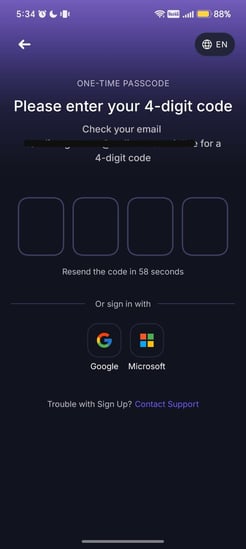
4. After setting up your information, enter the 4-digit code sent to your email.
5. [Optional] Set up Face ID for quick access the next, for the next time,
.jpeg?width=246&height=550&name=WhatsApp%20Image%202026-09-15%20at%2010.33.53%20(3).jpeg)
At the moment of logging in, our system automatically detects your location and sets the app to the local language, allowing you to get started seamlessly.
Once you've completed these steps, you're all set to dive in and start exploring the app!
What happens if you can't find your account?
Automatic Account Migration: Don't worry if you accidentally use your personal email. We'll automatically connect your personal email to your work account so get access to your company's sponsored Wellness Coach plan.
Support
Live Support
Schedule a live support session with our team for real-time, face-to-face help whenever you need it.
Learn more about how to book
[Book live support]
Email Support
Reach out to support@wellnesscoach.live for assistance. This contact is also available directly inside the app. Responses may take up to 24 hours.
[Email us]